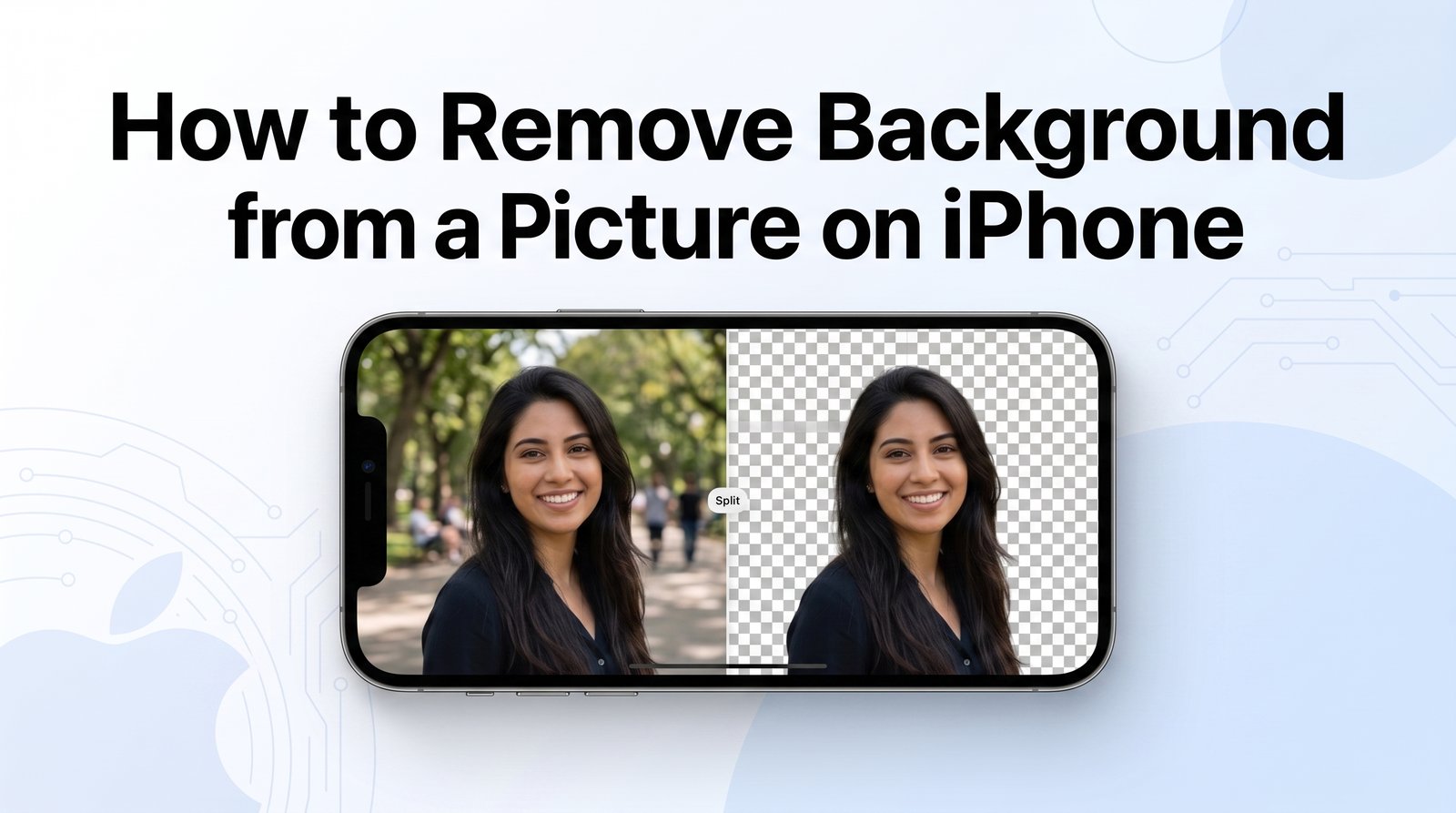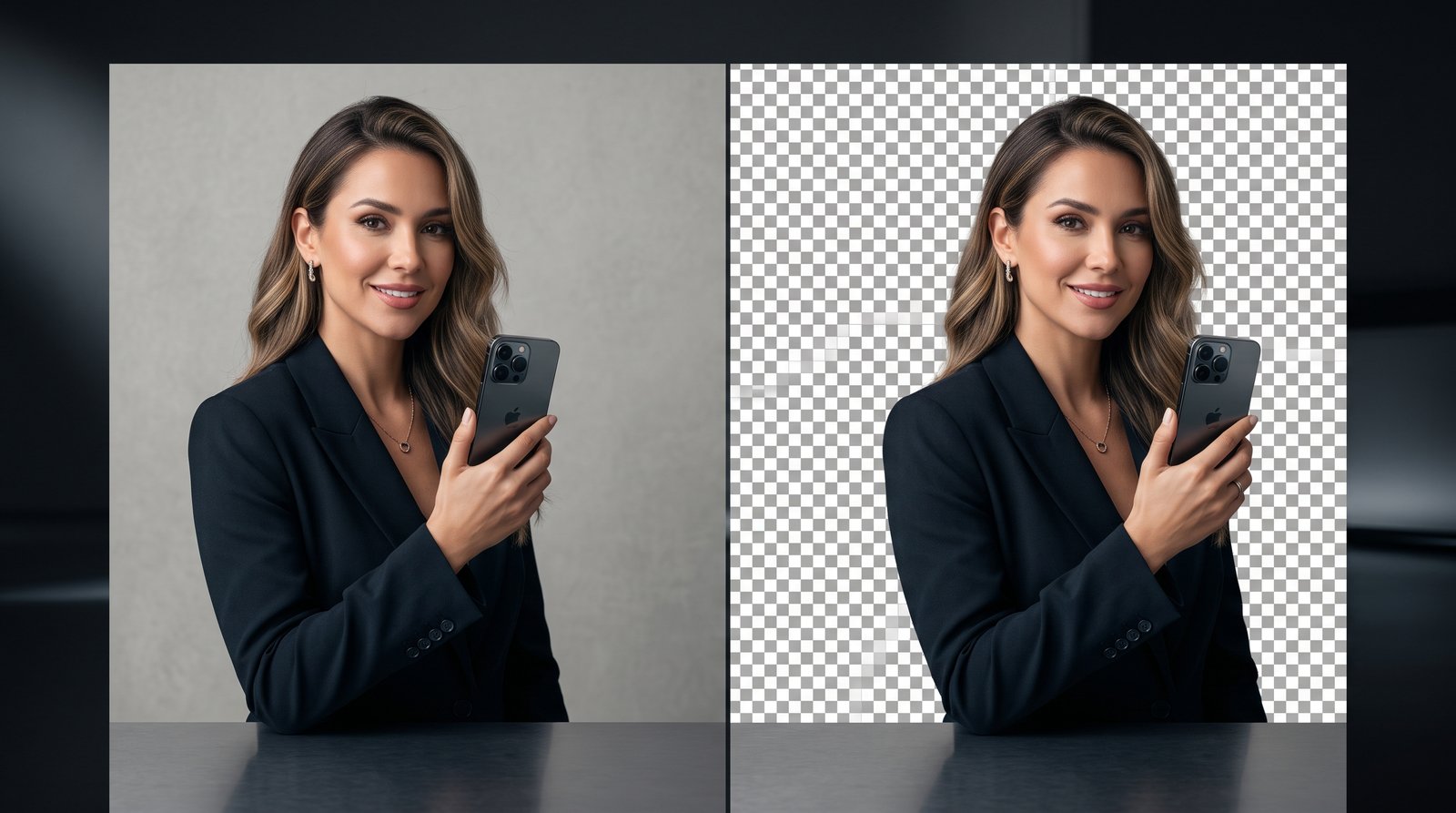
A transparent background can make a picture much more useful for graphic design, websites, presentations, product images, social media posts, and other creative projects. Instead of keeping a solid white or colored background, you can separate the main subject and leave the surrounding area transparent.
The good news is that you do not always need advanced editing software to do this. Several simple image-editing methods can help you turn an ordinary picture into a transparent image.
In this guide, you will learn how to make a picture background transparent how to remove a background cleanly, which file format to use, and how to get better results without losing image quality.
What Does a Transparent Background Mean?
A transparent background is an area of an image that contains no visible color or solid background.
You may see a gray-and-white checkerboard pattern while editing a transparent image. This checkerboard is commonly used by image-editing software to show which parts of an image are transparent.
For example, imagine a product photo with a white wall behind it. After removing the wall, only the product remains while the area around it becomes transparent.
Transparent images are especially useful for:
- Logos
- Product photos
- Website graphics
- Social media designs
- Stickers
- Presentations
- Thumbnails
- Digital artwork
- Marketing materials
Internal Link Suggestion: If you are looking for ready-to-use graphics, you can also explore the PNG Images section on PNG Valley for transparent PNG resources.
How to Make a Picture Background Transparent
The basic process is to remove the existing background and then export the image in a format that supports transparency.
Follow these steps to create a transparent background.
Step 1: Choose Your Picture
Start with the image you want to edit.
For the best results, choose a clear, high-resolution picture where the main subject is easy to distinguish from the background.
Photos with good lighting and strong contrast between the subject and background are usually easier to process.
Step 2: Remove the Existing Background
Open the picture in an image-editing or background-removal tool that supports transparency.
Depending on the tool, you may be able to automatically detect the main subject. Other tools may allow you to manually select the area that you want to keep.
The goal is to remove the unwanted background while preserving the main subject.
Step 3: Check the Edges
After removing the background, zoom in and inspect the edges of the subject.
Pay particular attention to:
- Hair
- Fur
- Fingers
- Thin objects
- Curved edges
- Small details
- Shadows
If part of the original background remains around the subject, use the editing tool's cleanup or erase options to refine the result.
Step 4: Make Sure the Background Is Transparent
Do not assume that a white-looking background is transparent.
Some editors display transparency using a checkerboard pattern. If you still see a solid white or colored area, the background may not actually have been removed.
Check the preview carefully before exporting the image.
Step 5: Export the Image as PNG
When the image is ready, save it in a format that supports transparency.
PNG is one of the most commonly used formats for transparent images because it can preserve transparent areas.Avoid exporting the final transparent image as JPEG because JPEG does not preserve transparency.
How to Make an Image Background Transparent Online
An online image editor or background-removal tool can be convenient when you do not want to install desktop software.
The general process is simple:
- Open a suitable online image-editing or background-removal tool.
- Upload your picture.
- Let the tool detect the main subject.
- Review the background removal.
- Clean up any unwanted areas. Export the finished image as PNG
Before using an online service, check its export quality, file-size limits, privacy terms, and whether transparent PNG downloads are available.
Internal Link Suggestion: If you need backgrounds for your designs after removing the original one, you can browse PNG Valley's Background Photos collection for additional design resources.
How to Make a Photo Background Transparent
The process is similar for photographs.
First, upload or open the photo in a background-removal tool. The software identifies the main subject and separates it from the surrounding area.
Photos with simple backgrounds are generally easier to process.
For example, a product photographed against a plain wall may be easier to isolate than a person standing in a crowded street.
If the automatic result is not accurate, use manual selection or cleanup tools to correct the edges.
How to Make a White Background Transparent
White backgrounds are common in product photography, logos, scanned graphics, and simple illustrations.
If you want to make a white background transparent, select the background and remove it while keeping the main subject.
Be careful with white objects. If the subject itself contains white areas, an automatic color-removal method may accidentally remove parts of the subject too.
For these images, subject-based background removal can often produce a better result than simply deleting every white pixel.
How to Make a Picture Transparent Without Losing Quality
Removing a background does not automatically guarantee good image quality.
To preserve the quality of your image:
Start with the highest-resolution original available. Avoid repeatedly saving and re-uploading the image. Use PNG when transparency is required. Check the exported dimensions. Inspect fine edges before downloading or publishing. Avoid unnecessary compression.
If you are preparing an image for a website, also consider optimizing the final PNG so that the file is not unnecessarily large.
Why PNG Is Better for Transparent Images
PNG is commonly used when an image needs transparent areas because it supports an alpha channel.
This makes PNG useful for graphics that need to sit over different backgrounds.
For example, a transparent logo can be placed on a website without showing a white rectangle behind it.
Similarly, a product cutout can be placed over a colored background, photograph, or design without carrying the original background with it.
Internal Link Suggestion: You can also explore PNG Valley's Templates collection when you need editable or ready-to-use design resources for your projects.
What Images Work Best for Background Removal?
Not every image produces the same result.
Background removal generally works better when:
- The subject is clearly visible.
- The image has good lighting.
- The subject contrasts with the background.
- The photo is sharp.
- The background is not extremely complicated.
- The subject does not blend into surrounding objects.
Images containing hair, smoke, glass, shadows, or other fine details may require additional manual editing.
How to Fix Rough Edges After Removing a Background
Sometimes the background disappears, but the edges still look unnatural.
You may notice a thin outline around the subject or small pieces of the old background.
To improve the result:
- Zoom into the image.
- Inspect the subject's outline.
- Remove remaining background fragments.
- Restore any accidentally deleted details.
- Check the edges at normal viewing size.
- Export the image again.
Do not remove too much around the subject. Over-cleaning can make hair, fur, or other fine details look artificial.
Can You Make a Picture Background Transparent on a Phone?
Yes, depending on the phone, operating system, and editing tools available.
Modern smartphones can provide built-in image-selection features, while many mobile editing applications offer automatic background removal.
The exact steps can vary between devices and software versions.
If you frequently need transparent images, choose a tool that supports PNG export rather than simply placing the subject on a white background.
How to Use a Transparent Picture
Once you have created a transparent image, you can use it in many different projects.
For example, you can:
- Place a product over a new background.
- Add a logo to a website.
- Create social media graphics.
- Design a presentation.
- Make a sticker.
- Create a YouTube thumbnail.
- Add an object to a promotional design.
Because the background is transparent, the image can be placed over another color or picture without displaying the original background.
Common Problems When Making a Background Transparent
The Background Still Looks White
A white background does not necessarily mean transparency.
Check whether your editing tool displays a transparency checkerboard. If the exported image still contains a white rectangle, the background may not have been removed correctly or the wrong file format may have been selected.
Part of the Subject Disappeared
Automatic background removal can sometimes remove areas that look similar to the background.
Restore those areas using the editing tool's refinement options and check the result again before exporting.
The Edges Look Jagged
Low-resolution images or inaccurate selections can create rough edges.
Start with a higher-quality image and refine the selection carefully. Zooming in can also help you identify small unwanted pixels around the subject.
The PNG File Is Too Large
Transparency can sometimes result in a larger file than expected.
If the image is intended for a website, optimize the PNG after editing while maintaining acceptable visual quality. This can help reduce unnecessary page weight.
How to Get Better Transparent Background Results
The quality of the final image depends on both the original picture and the background-removal process.
For cleaner results, keep these tips in mind:
- Use a high-resolution original image.
- Choose photos with clear subject-background separation.
- Avoid extremely blurry images.
- Check hair and other fine details carefully.
- Review the image before exporting.
- Keep the original file as a backup.
- Use PNG when transparency needs to be preserved.
A few extra minutes of checking the edges can make a significant difference, especially when the image will be used professionally.
Frequently Asked Questions
How do I make a picture background transparent?
Remove the existing background using an image-editing or background-removal tool, check the edges, and export the finished image as PNG.
How do I make an image background transparent?
Upload the image to a compatible background-removal tool, separate the main subject from the background, refine the edges, and save the result in a format that supports transparency.
Can I make a photo background transparent?Yes. Photos can have their backgrounds removed using automatic or manual editing tools. The quality of the result depends on the original photo and the complexity of its background.
Can I make a white background transparent?Yes. A white background can be removed, but you should be careful when the main subject also contains white areas.
What file type should I use for a transparent background?PNG is a common choice because it supports transparent areas. JPEG does not preserve transparency.
Why does my transparent image have a white background?
The image may have been exported as JPEG or another format that does not preserve transparency. Check the export settings and choose PNG when transparency is required.
Can I use a transparent image on a website?Yes. Transparent PNG images can be placed over website backgrounds, colored sections, photographs, and other design elements.
Can I make a picture background transparent without Photoshop?Yes. Photoshop is not required for every background-removal task. Many online tools, mobile apps, and other image editors can remove backgrounds and export transparent PNG images.
Final Thoughts
Learning how to make a picture background transparent is useful for everything from product photography and logos to social media graphics and website design.
The basic process is straightforward: choose a good-quality picture, remove the unwanted background, refine the edges, confirm that the background is actually transparent, and export the result as PNG.
For the cleanest results, always inspect fine details before using the image in your final design.
Internal Link Suggestion: If you need more image resources and design inspiration, visit the PNG Valley Blog for practical tutorials covering PNG images, backgrounds, photo editing, and graphic design.