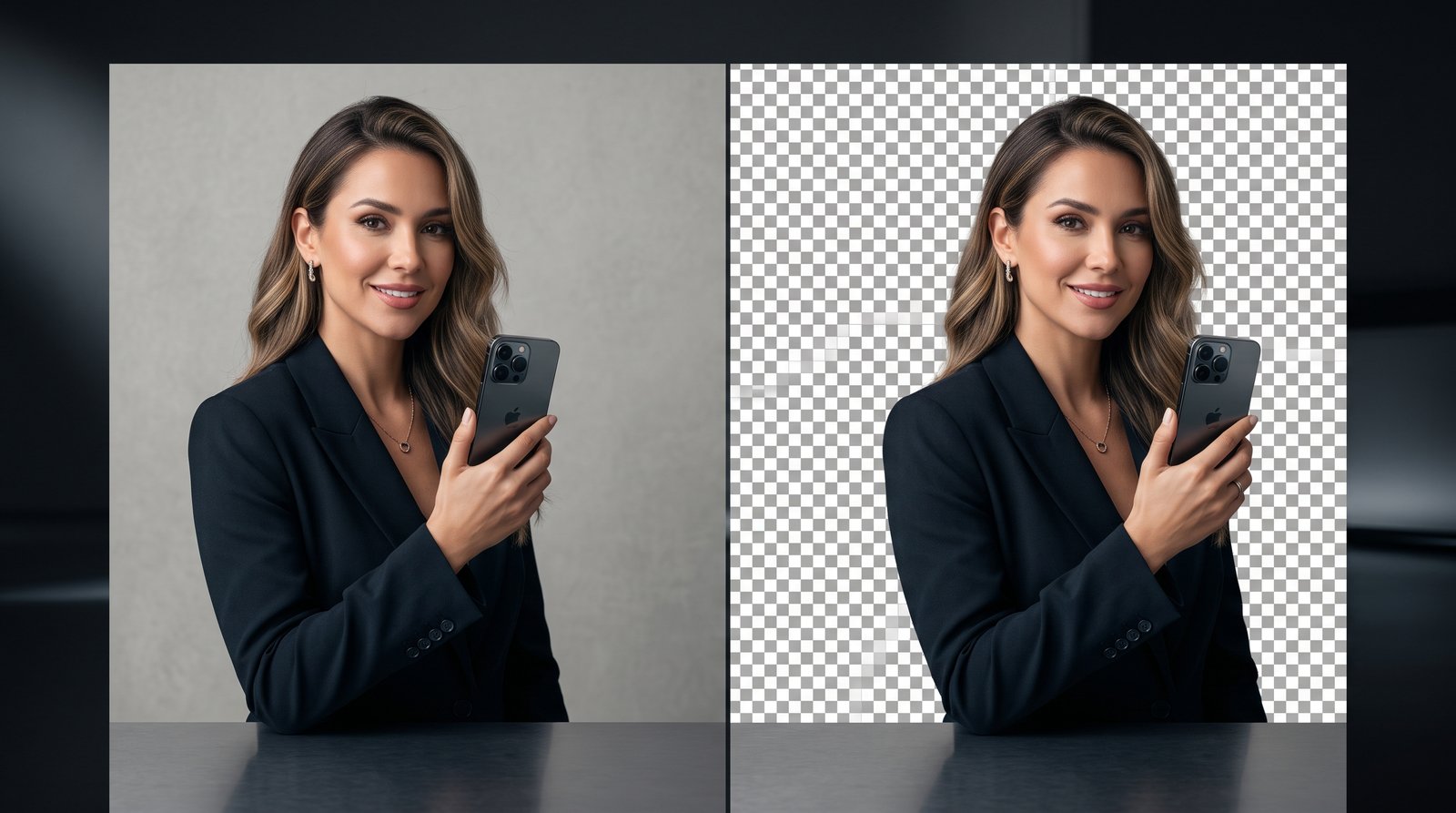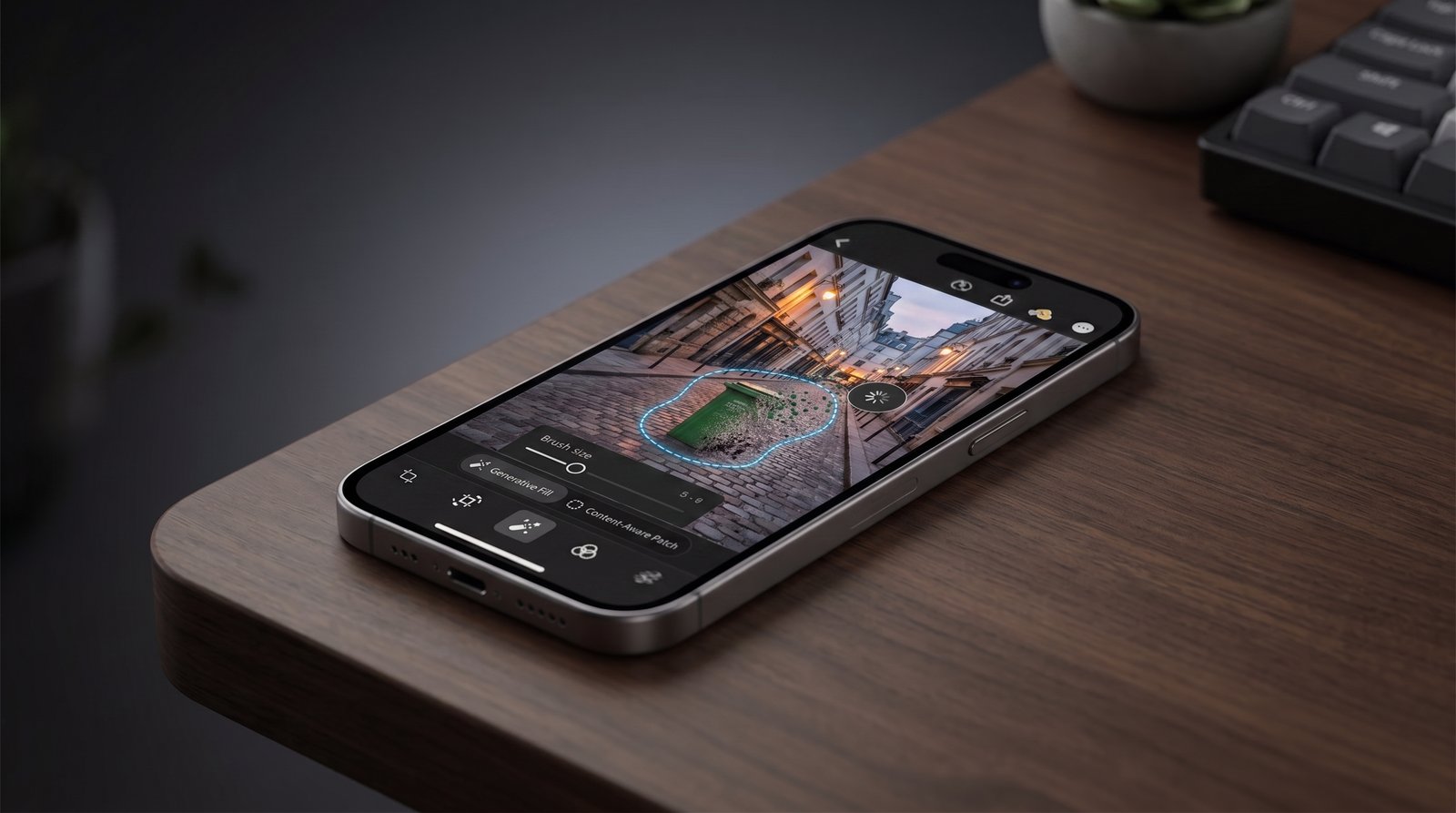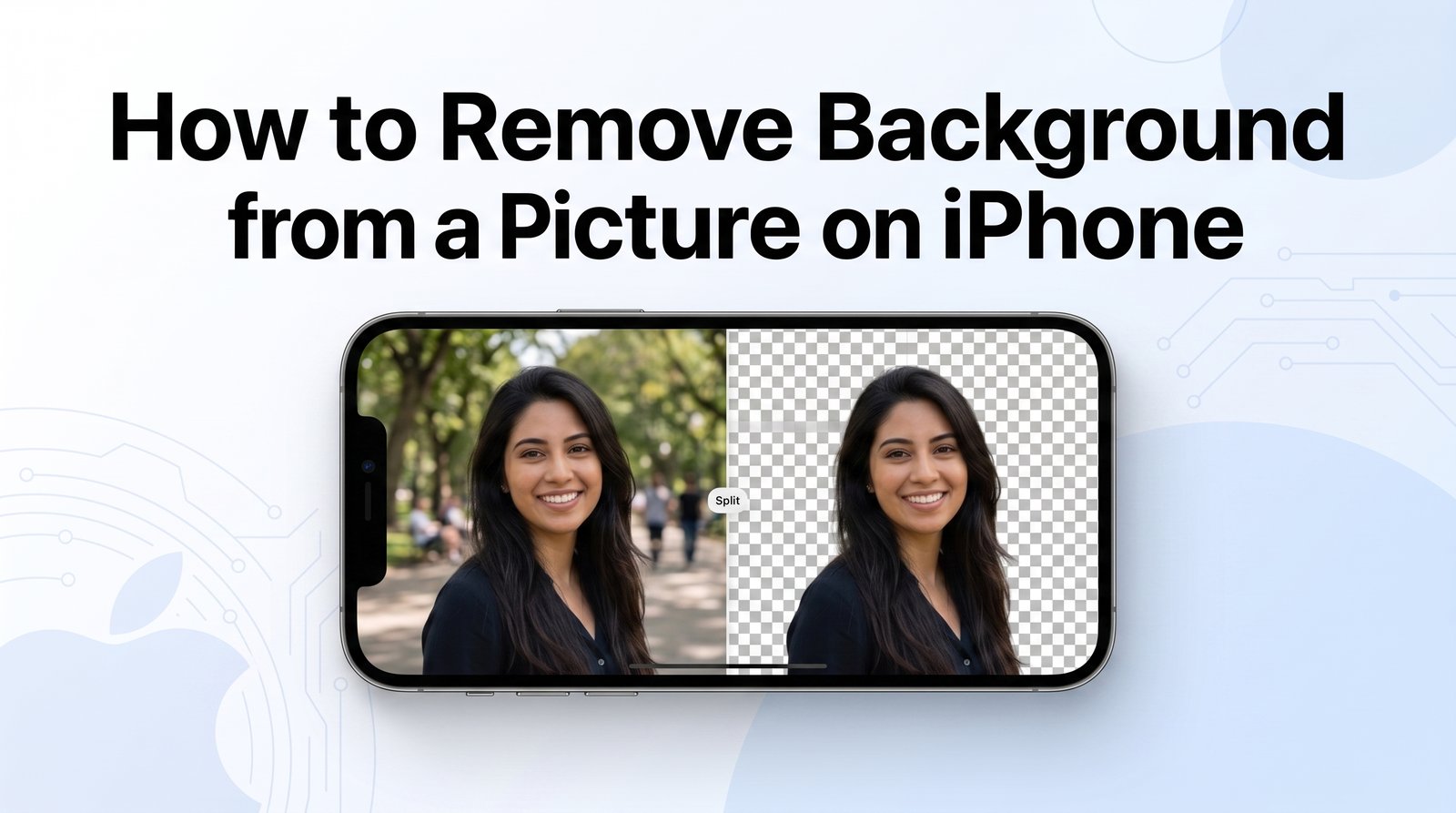
Removing the background from a photo on an iPhone is easier than it may seem. You do not always need Photoshop or another complicated editing app. Depending on your iPhone and iOS version, you can use built-in Apple features to separate the main subject from its surroundings.
This can be useful when you want to create a transparent image, make a sticker, use a person or product in another design, or simply get rid of an unwanted background.
In this guide, you'll learn how to remove background from a picture on iPhone using simple methods.
Can You Remove a Photo Background on an iPhone?
Yes. Modern iPhones can recognize the main subject in many photos and separate it from the surrounding background.
For example, you can isolate:
- People
- Pets
- Products
- Objects
- Food
- Vehicles
- Other clearly defined subjects
The built-in Photos app is usually the easiest place to start because you may not need to install an additional background remover.
How to Remove Background from a Picture on iPhone
Follow these steps to separate the subject from its background.
Step 1: Open the Photos App
Start by opening the Photos app on your iPhone. Find the image that contains the subject you want to isolate and open it.
Step 2: Open the Image
Select the picture so it appears large on your screen. Choose a photo where the main subject is easy to distinguish from the surrounding area. Images with good lighting and a clear subject generally produce better results.
Step 3: Press and Hold the Main Subject
Place your finger on the person, object, or other subject you want to extract. Press and hold for a moment. If your iPhone recognizes the subject, it will highlight it separately from the rest of the image.
Step 4: Choose a Sharing or Copy Option
Once the subject has been detected, you may see options such as Copy or Share. Choose Copy if you want to paste the isolated subject into another app. You can also use Share when you want to send or save the extracted subject through an available option.
Step 5: Paste the Subject Where You Need It
Open an app that supports images, such as Notes or a compatible editing or design application. Paste the copied subject into the document or project. The background should not appear around the extracted subject when the feature has successfully isolated it.
How to Make a Picture Transparent on iPhone
If your goal is to create an image with a transparent background, there is an important difference between isolating a subject and saving a transparent image file. The iPhone can separate a subject from its surroundings, but the way you save the result can determine whether transparency is preserved.
For a reusable transparent graphic, a background-removal tool that exports PNG files can be more convenient. PNG supports transparency, making it suitable for logos, product images, stickers, thumbnails, and graphic designs.
You can also explore PNG Valley's PNG images for ready-to-use transparent graphics.
How to Remove Background from an iPhone Photo for Free
You may be able to remove a background without paying for an editing application. The built-in subject-selection feature is a good first option because it does not require a separate subscription for the basic action.
However, if the image has complicated edges, hair, shadows, or objects that overlap the subject, a dedicated background-removal tool may provide more control.
When choosing a free tool, check whether it:
- Produces a transparent PNG
- Keeps the original image quality
- Handles fine edges accurately
- Adds a watermark
- Requires an account
- Limits the number of free exports
How to Remove a Background from a Picture on iPhone Without an App
If your iPhone supports Apple's subject-lifting feature, you can try removing the background directly from the Photos app. This is particularly useful for simple images where the subject is clearly separated from the background.
The general process is:
- Open Photos.
- Select your image.
- Press and hold the main subject.
- Wait for the subject to become highlighted.
- Select Copy or Share.
- Paste or send the extracted subject.
This method is quick because you do not have to upload the image to another website.
What If the iPhone Does Not Detect the Subject?
Sometimes the subject-selection feature may not work as expected. This can happen when:
- The background and subject have similar colors.
- The photo is blurry.
- The subject is too small.
- Several objects overlap.
- The edges are difficult to identify.
- The image quality is poor.
Try using a clearer image with better lighting. You can also crop the photo first so the main subject is more prominent.
For complicated photographs, an AI-powered background remover may produce a cleaner result.
How to Remove a White Background from an Image on iPhone
Removing a plain white background can be relatively easy when the main subject has clearly defined edges. Open the image and try the subject-selection method described above. If the iPhone cannot distinguish the subject from the white area, use a dedicated background-removal tool.
For product photos, logos, icons, and graphics, make sure the tool preserves small details around the edges.
How to Change the Background After Removing It
Removing the background is only the first step. You can then place the isolated subject over another image or background.
If you need a new background for your image, you can explore PNG Valley's background collection for ready-to-use graphics.
For example, you could:
- Remove the original background.
- Copy the isolated subject.
- Open a photo-editing or design application.
- Add a new background.
- Paste or import the subject.
- Adjust its size and position.
- Save the finished image.
This can be useful for social media graphics, product images, presentations, profile pictures, and other designs.
How to Get Better Background Removal Results
The quality of the original photo has a major effect on the final cutout. For better results:
- Use a sharp, high-resolution photo.
- Choose images with good lighting.
- Avoid backgrounds that closely match the subject.
- Keep the main object clearly visible.
- Avoid excessive motion blur.
- Use images with distinct edges when possible.
Hair, fur, transparent objects, and thin objects can be particularly difficult for automatic background removal systems.
Do You Need a Background Remover App?
Not necessarily. For simple photos, your iPhone's built-in tools may be enough. An external application becomes more useful when you need additional controls, such as edge refinement, background replacement, shadows, or batch processing.
If you frequently create transparent images, you may also want a tool that lets you export directly as PNG.
Frequently Asked Questions
Can I remove the background of a picture on iPhone?
Yes. On supported iPhones and software versions, you can press and hold a recognizable subject in a photo to separate it from the surrounding background.
How do I remove the background from a photo on iPhone?
Open the photo in the Photos app, press and hold the main subject, and use the available Copy or Share option after the subject is detected.
Can I remove a background without installing an app?
Yes. If your iPhone supports Apple's built-in subject-selection feature, you can try removing the background directly through the Photos app.
Can I save the result as a transparent PNG?
You can create a subject cutout on iPhone, but saving it as a true transparent PNG depends on the method and app you use. A tool specifically designed for transparent PNG exports may be preferable when the file format matters.
Why won't my iPhone remove the background?
The subject may be difficult for the phone to identify because of poor image quality, similar colors, complicated edges, overlapping objects, or insufficient contrast.
Can I replace the background after removing it?
Yes. After separating the subject, you can place it over another image or background using a compatible photo-editing or design application.
Final Thoughts
Learning how to remove background from a picture on iPhone can save you time when you need a quick photo cutout. For straightforward images, the built-in Photos features can be enough to separate a person, product, pet, or object from its surroundings.
If you need more precise edges, transparent PNG exports, background replacement, or advanced editing, a dedicated background-removal tool can give you additional options.
The best method depends on the type of image and how you plan to use the final result.
Looking for more smartphone tips? Check out our PNG Valley Blog for more guides like this.