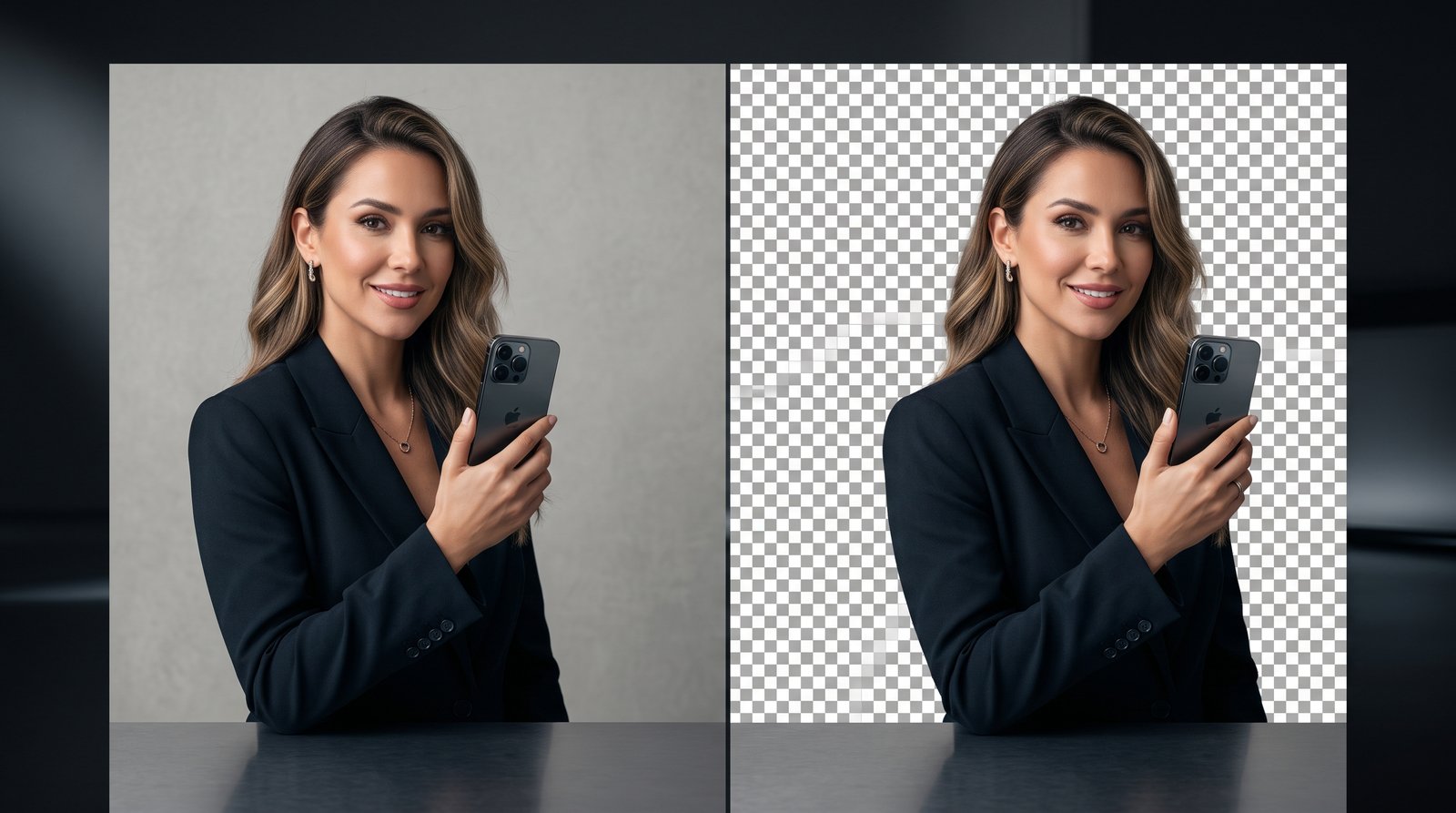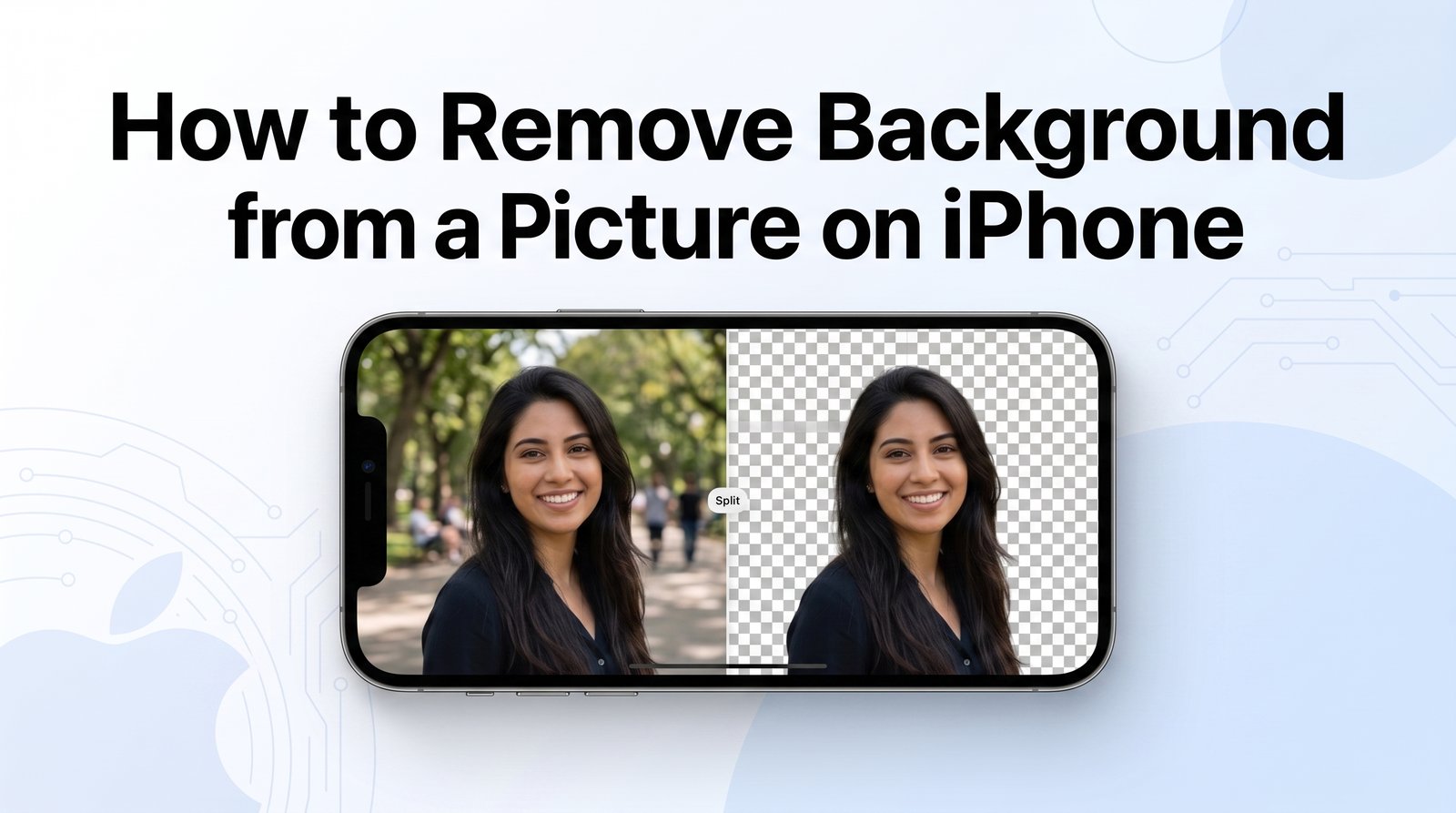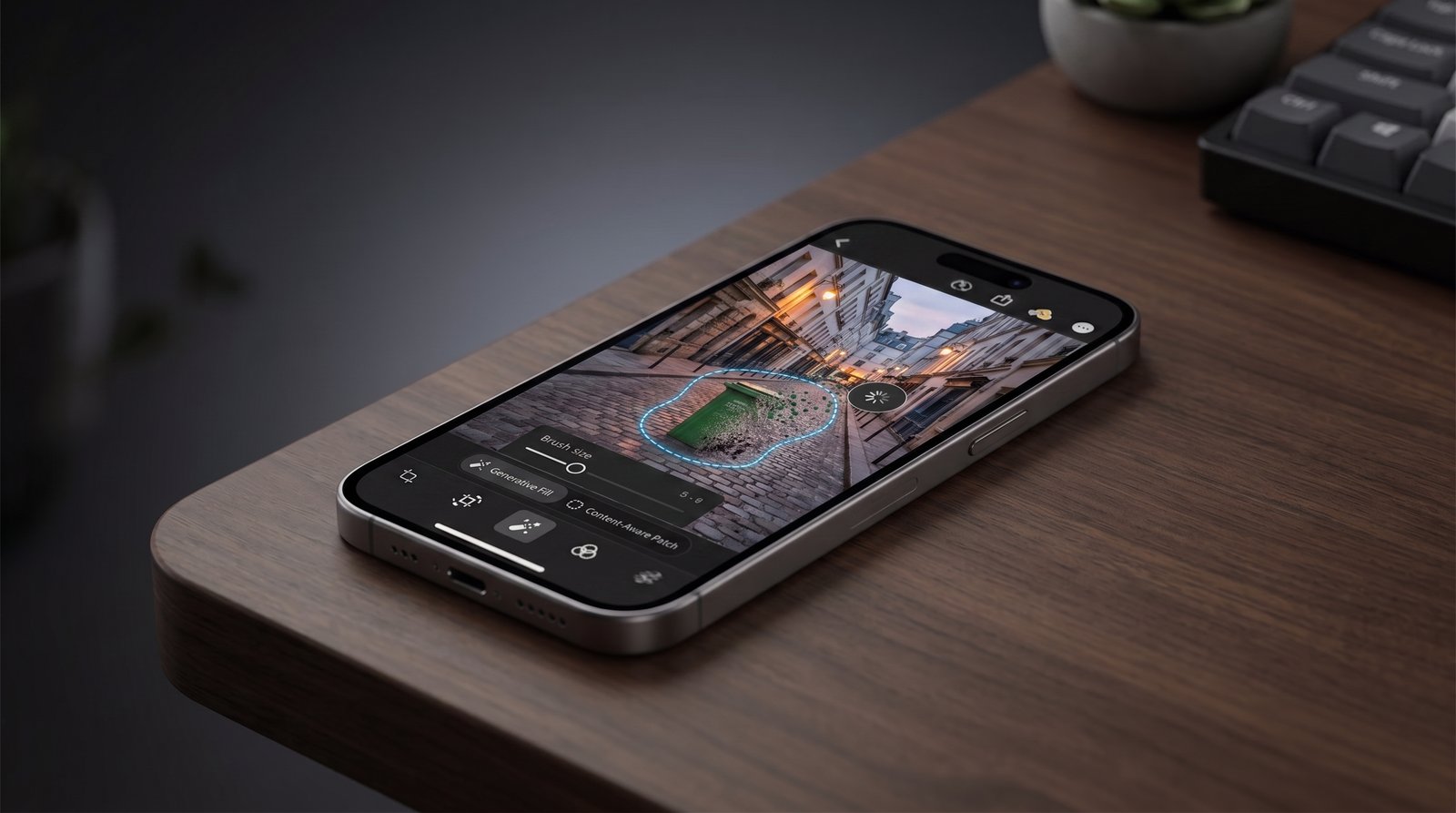
Removing an unwanted object can turn a distracting iPhone photo into a much cleaner image. Whether you want to get rid of a person in the background, a street sign, a cable, or a small object, modern iPhone editing tools can make many simple cleanup tasks easier.
Depending on your iPhone model and iOS version, you may be able to clean up unwanted elements directly from your photos. If the built-in options are not enough, a compatible photo-editing app can provide additional control.
If you need graphics or visual elements for a project after editing your photo, you can also explore the PNG Images collection on PNG Valley.
In this guide, you will learn different ways to remove unwanted objects from an iPhone photo, what can affect the result, and how to make your edits look more natural.
Is Object Removal Possible on an iPhone?
Yes. Depending on the iPhone model and iOS version you are using, you may have access to built-in photo editing features that can help clean up unwanted elements.
The available tools can differ between devices and software versions. Some iPhones provide more advanced cleanup capabilities, while older models may need a compatible third-party editing application.
Object removal can be useful for cleaning up:
- People who accidentally appear in the background
- Street signs and labels
- Small unwanted objects
- Cables and wires
- Background distractions
- Minor blemishes
- Other details that take attention away from the main subject
The quality of the final result depends on the size of the object, the surrounding background, and the complexity of the photograph.
A Simple Way to Clean Up an iPhone Photo
Start by opening the image you want to edit and checking which cleanup options are available on your device.
Step 1: Open the Photos App
Launch the Photos app on your iPhone and locate the image you want to improve. For the best results, choose a clear, high-resolution photo. Images with plenty of detail give editing tools more information to work with.
Step 2: Select the Image
Open the photo so you can see it clearly. Take a moment to identify the unwanted object and examine the area around it. If the object overlaps a face, person, building, or another important part of the image, the removal process may be more difficult.
Step 3: Open the Editing Options
Tap Edit to access the photo editing features available on your iPhone. The options you see depend on your device and installed iOS version. If a cleanup or object-removal feature is available, select it and follow the instructions displayed on the screen.
Step 4: Select the Unwanted Area
Use the available cleanup tool to identify the object you want to remove. Depending on the editing feature, you may be able to tap the object, brush across it, or mark the area manually. Try to select the complete unwanted item rather than removing only a small portion.
For smaller objects, making a precise selection can help produce a cleaner result.
Step 5: Inspect the Edited Area
Once the object has been removed, examine the surrounding area carefully. Pay attention to:
- Repeated textures
- Unusual patterns
- Distorted edges
- Missing details
- Strange shadows
- Areas that look noticeably different from the original background
If the result does not look natural, undo the edit and try selecting the object again.
Step 6: Save the Finished Image
Once you are satisfied with the result, save the edited photo using the available option. Whenever possible, keep the original image as well. Having the original makes it easier to try another editing method later without losing the source photo.
Getting an Unwanted Person Out of an iPhone Photo
An unwanted person in the background can distract attention from the main subject. This is particularly common in travel photos, outdoor pictures, and crowded locations.
For example, you might take a picture at a tourist attraction and later notice someone walking behind you.
To improve the result, select the unwanted person carefully and include the complete area that needs to be reconstructed. If the person is standing against a simple wall, sky, road, or floor, the editing tool may have an easier time filling the missing area.
If the image needs additional visual elements after editing, you can also browse the Photos collection on PNG Valley.
Cleaning Distracting Items Out of a Photo
Object removal is useful for more than just people. You can also clean up smaller elements that make a photograph look cluttered.
Common examples include:
- Trash cans
- Street signs
- Electrical cables
- Small decorations
- Unwanted furniture
- Items on tables
- Background clutter
- Minor imperfections
Start with objects that do not overlap important subjects. Removing a small item from an open area is generally easier than removing something that covers a person's face or another important detail.
If you want to replace the original setting after cleaning the image, PNG Valley also has a collection of Background Photos that can be useful for different creative projects.
How to Make Object Removal Look Natural
Removing an object is only part of the process. The area left behind should also blend naturally with the rest of the photograph. Here are some useful techniques.
Start With a Sharp Image
Use the highest-quality version of the photo available. A sharp image usually contains more information for the editing system to analyze.
Remove Smaller Objects First
Small distractions are usually easier to clean up than large objects that cover a significant portion of the photograph.
Avoid Important Subjects
Be careful when an unwanted object overlaps a face, hand, building, vehicle, or another important feature. Automatic editing can produce visible distortions in these situations.
Examine the Result Closely
Zoom into the edited section after applying the change. Some problems may not be noticeable when viewing the complete photograph.
Try a Different Selection
If the first attempt looks unnatural, undo the change and select the object again. Adjusting the selected area can sometimes produce a better reconstruction.
Can You Clean Up an iPhone Photo Without Installing an App?
This depends on your iPhone model and the version of iOS installed on the device.
Some newer Apple devices and software versions include more advanced photo editing capabilities. Older devices may provide fewer options and could require a compatible third-party application.
Before installing an editing app, check its available features, export quality, privacy practices, and whether important functions require a paid subscription.
Why Does Object Removal Sometimes Fail?
Automatic photo cleanup cannot produce perfect results in every situation. Problems are more likely when:
- The unwanted object is very large.
- It covers another person or important subject.
- The background contains complicated patterns.
- Several objects overlap.
- The photograph is blurry.
- The object creates a strong shadow.
- Fine details surround the area being edited.
If the result looks unnatural, try working on a smaller area at a time. For difficult images, a more advanced photo-editing application may provide better control.
Removing People and Objects From Busy Scenes
Complex backgrounds can make object removal considerably harder.
Removing a person from a plain wall may be relatively straightforward because the editing tool has a simple area to reconstruct. Removing someone from a crowded street is more challenging because the missing area could contain buildings, signs, vehicles, textures, and other people.
When working with a complicated photograph, make smaller edits and inspect the result after each change. This approach can make it easier to identify which selection is causing an unwanted result.
How to Preserve the Original Photo
Before making major changes, make sure you can access the original image. This is especially important when removing a large object or person. An edit may look acceptable at first but appear unnatural when you inspect it more carefully later.
Keeping the original gives you the freedom to try another editing technique without permanently losing your source image.
When Is a Dedicated Photo Editor Better?
Built-in iPhone editing features can be convenient for quick cleanup tasks. However, a dedicated photo editor may be more useful when you need greater control over complicated images.
Consider using an additional editing tool when you need:
- More precise selections
- Advanced object cleanup
- Better control over difficult backgrounds
- Detailed retouching
- Multiple photo-editing features
- Additional adjustments after removing an object
For occasional edits, the tools already available on your iPhone may be sufficient. For regular photo editing, a dedicated application can offer more flexibility.
Frequently Asked Questions
Can I remove an object from an iPhone photo?
Yes. Depending on your iPhone model and iOS version, you may have access to photo cleanup features that can help remove unwanted objects from an image.
How can I remove a person from an iPhone picture?
Open the image in a compatible editing tool, choose the available cleanup or object-removal feature, and select the person you want to remove. Check the surrounding area carefully before saving the result.
Do I need Photoshop to remove an object from a photo?
No. Photoshop is not required for many basic photo cleanup tasks. Supported iPhone features and compatible editing applications can handle a range of simple object-removal jobs.
Why does the area look blurry after removing an object?
When an object is removed, the editing system has to reconstruct the area underneath it. Complicated textures, fine details, shadows, or overlapping subjects can make the reconstructed area look less natural.
Can I remove several objects from the same photo?
Many editing tools allow multiple objects to be removed. For better results, work on one item at a time and inspect the image after each edit.
Can I remove text or signs from an iPhone photo?
In some cases, yes. Text and signs can be easier to remove when they are surrounded by a simple background. Large or detailed signs may require more advanced editing.
Can I remove unwanted people from a busy background?
You can try, but complicated scenes are more difficult. People surrounded by buildings, vehicles, signs, or other subjects may require several attempts or a more advanced editing tool.
Final Thoughts
Cleaning unwanted objects from an iPhone photo can make an image look more focused and polished without requiring complicated editing skills.
For small objects and relatively simple backgrounds, the available iPhone editing features may be enough. More complicated photographs may benefit from a dedicated photo editor with additional cleanup and retouching controls.
For the best results, start with a high-quality image, select unwanted elements carefully, and inspect the edited area before saving the final version.
If you are working on other image projects, you can explore the PNG Valley Blog for practical guides about PNG images, backgrounds, photo editing, and graphic design.